Home / Webflow
Copy-paste Webflow sections and components
Ready-made Webflow sections you copy from your browser and paste straight into the Webflow Designer. They arrive as native Webflow elements with their classes and breakpoints, not as an embed, so you edit them like anything you built yourself.
How it works in Webflow
- Open a section in the Ariva library and choose Copy for Webflow.
- Open your project in the Webflow Designer and select where the section should go.
- Paste with ⌘ + V on Mac or Ctrl + V on Windows.
- Change the text, images and colours in the Style panel. Classes keep readable names so they are easy to reuse.
A few sections to start with

Centered with media
Hero · H1
Classic bar
Navigation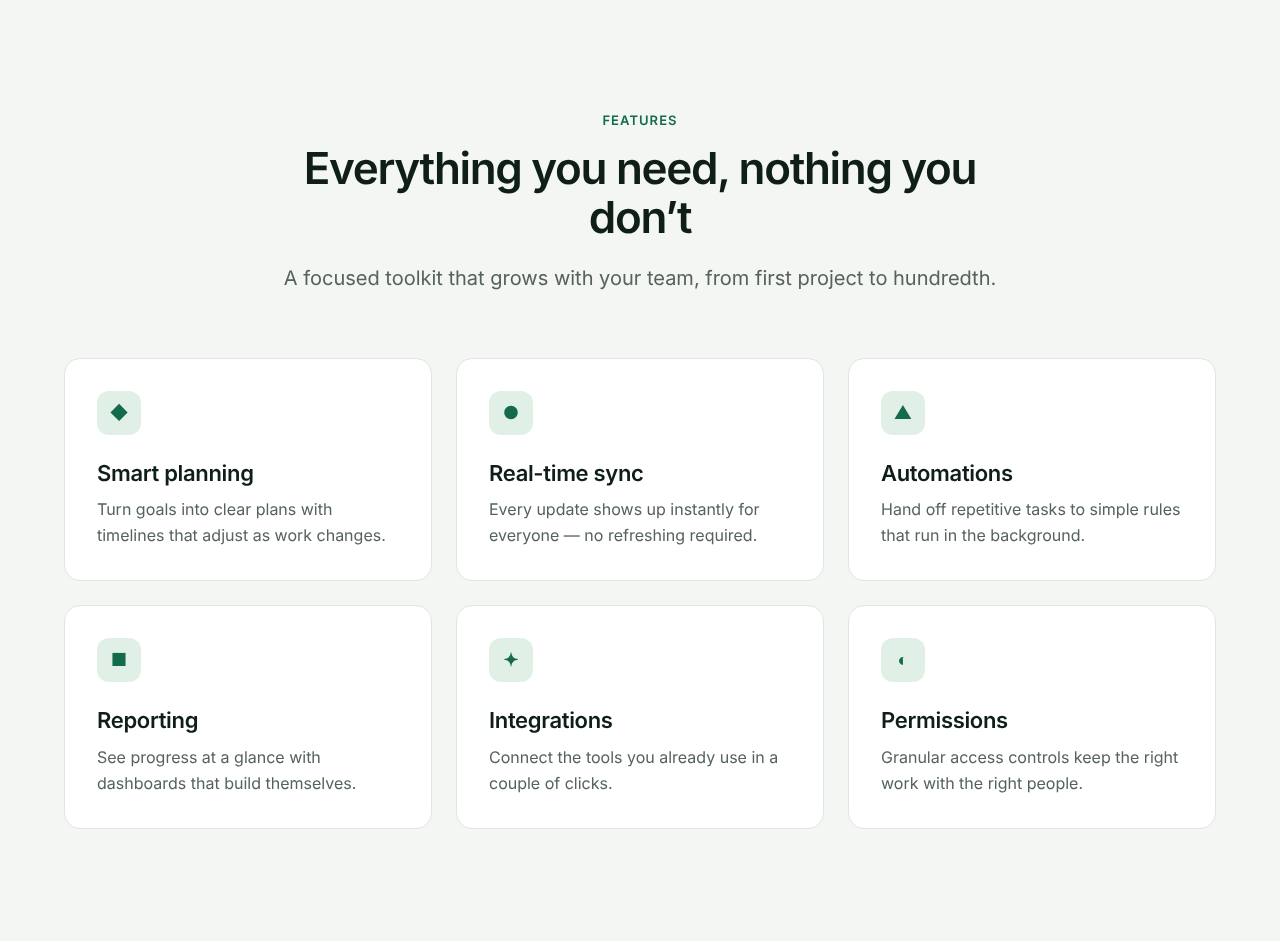
Icon card grid
Features · H2, H3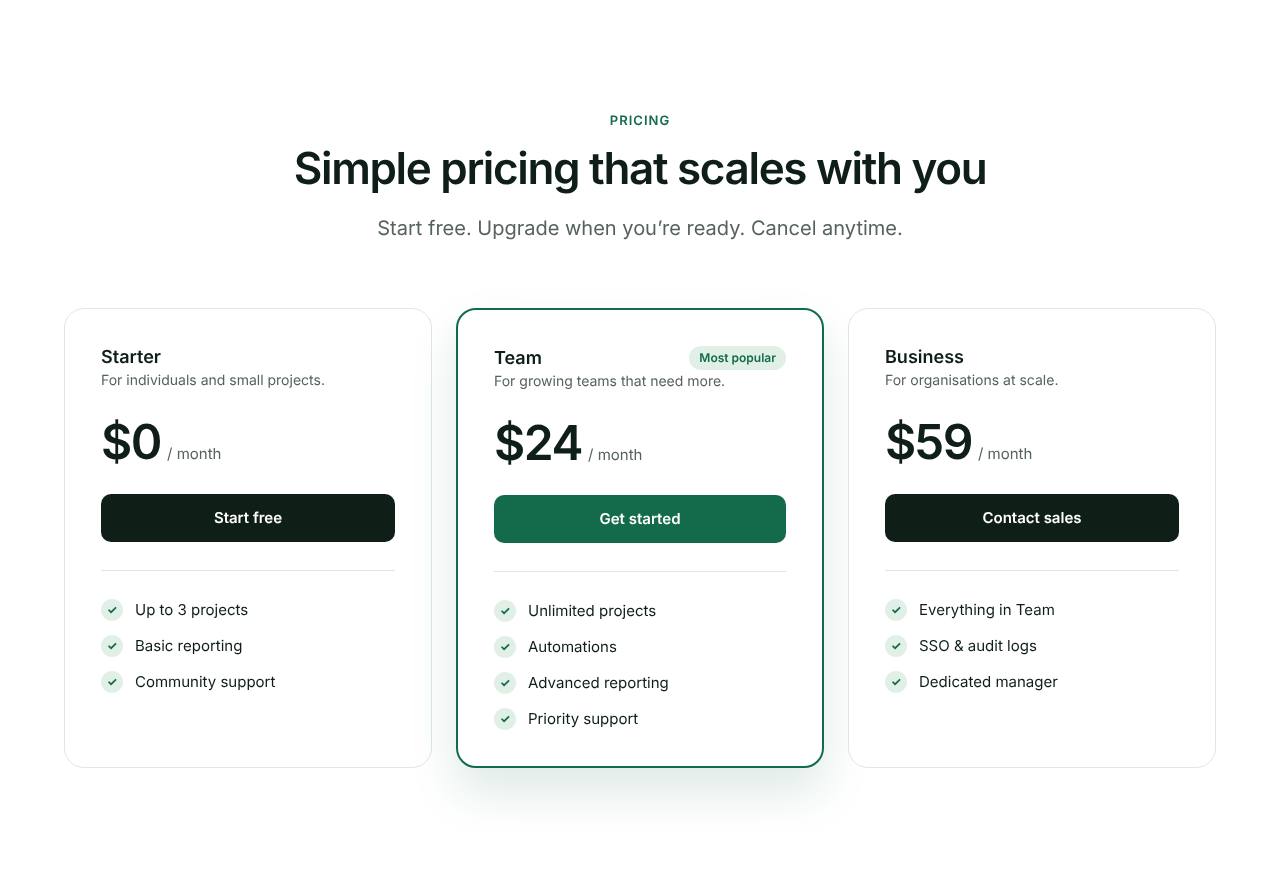
Three tiers
Pricing · H2, H3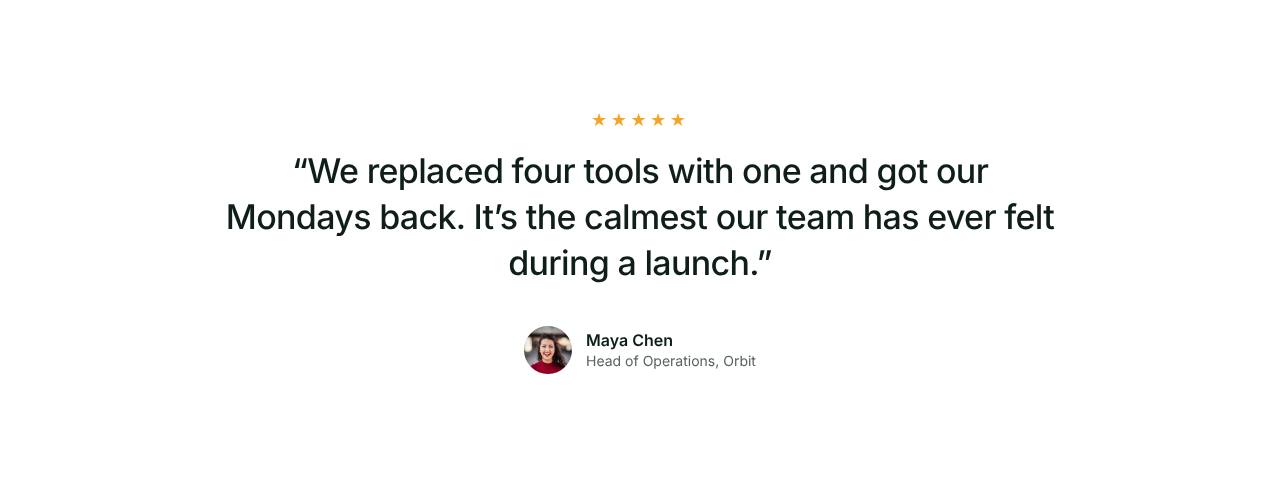
Single statement
Testimonials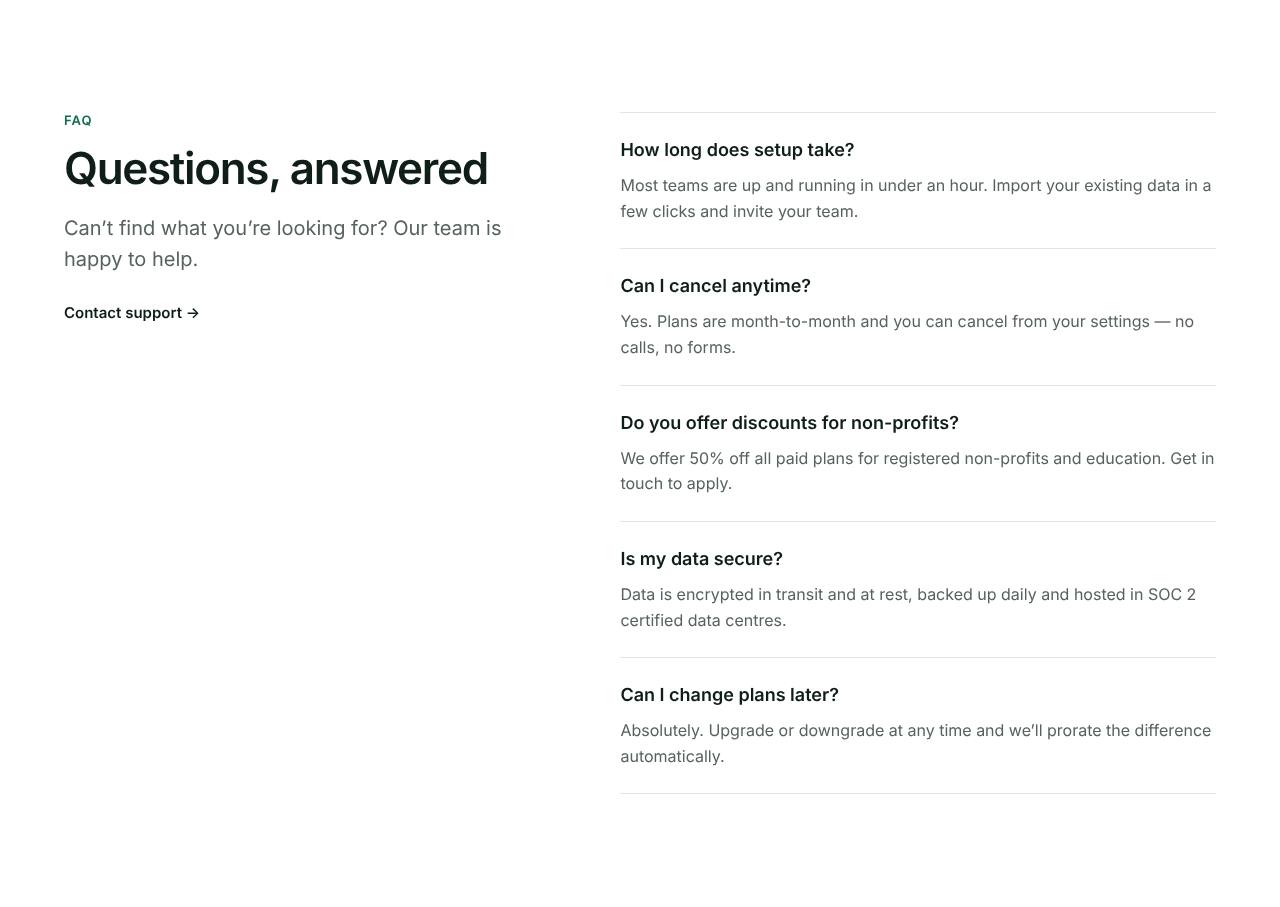
Side heading list
FAQ · H2, H3
Dark centered box
CTA · H2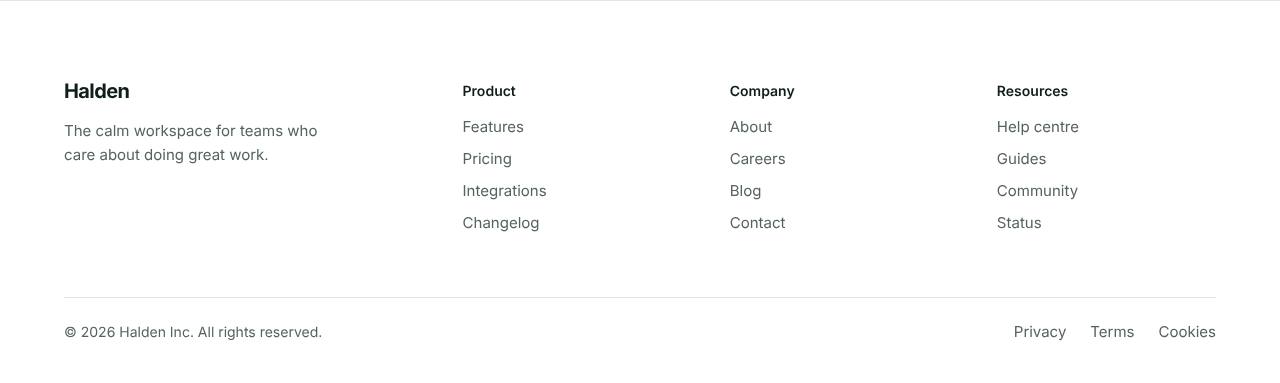
Multi-column
Footer
Simple row
Logos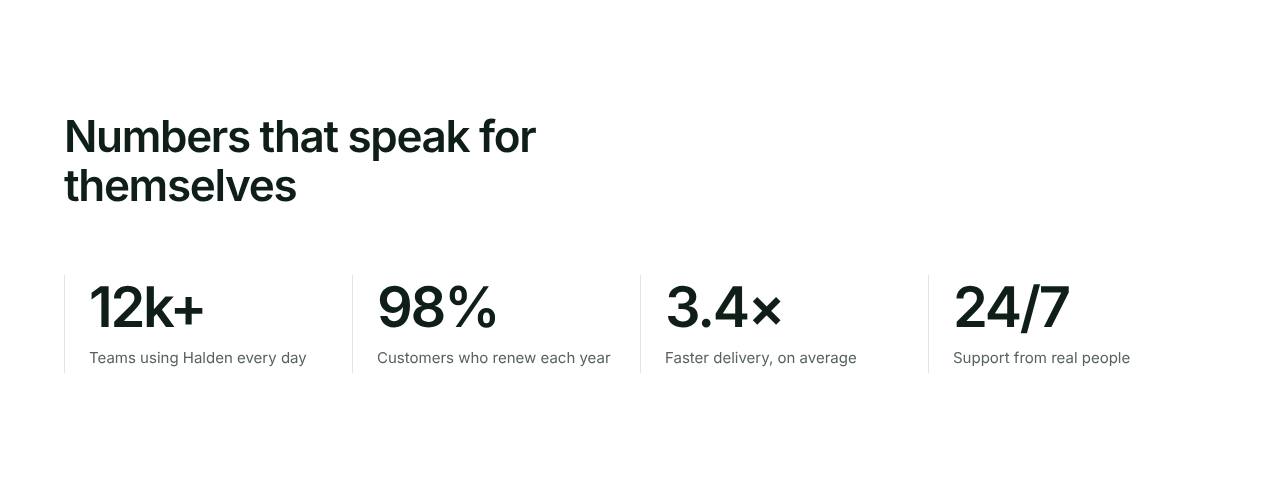
Divided numbers
Stats · H2
Portrait grid
Team · H2
Contact cards
Contact · H2, H3Every section type
Questions
Is it a Code Embed?
No. Website sections paste as native Webflow elements and classes. Only the interactive animations in the Animations library paste as a Code Embed, because they need a script.
Will the classes clash with my project?
Each section uses its own class names. If a class with the same name already exists, Webflow keeps both and adds a number to the new one.
Does it work on the free Webflow plan?
Yes. Pasting elements works on any Webflow plan; publishing to a custom domain needs a paid Webflow site plan, which is Webflow’s rule, not Ariva’s.
Are these sections free?
Some are. A free Ariva account copies every free section; Pro unlocks the rest for $9 a month or $59 a year, and Lifetime is a one-time $79.
Can I use them on client sites?
Yes. You can use the sections in websites you build for yourself and for clients. See the terms for the full licence.
Also works with
Start with the free sections
Make a free account and copy any free section into Webflow, Framer, Figma or code.