Home / Guides / How to add website sections to your project with Claude or Cursor
How to add website sections to your project with Claude or Cursor
If you already build with an AI coding assistant, you can ask it for a ready-made section instead of describing one from scratch. Ariva has an MCP server that lets Claude, Cursor and VS Code search the library and pull a section’s HTML and CSS into your project. This guide shows how to connect it and what to ask for.
Connect it
The server address is https://arivastudio.com/mcp. Pick your tool:
- Claude Code: run
claude mcp add --transport http ariva https://arivastudio.com/mcpin your terminal, thenclaude mcp listto check it is connected. - Cursor: add Ariva to
~/.cursor/mcp.jsonas an entry named ariva with the server URL, or use Cursor Settings, MCP, New MCP server, which opens the same file. - VS Code: run
code --add-mcp '{"name":"ariva","type":"http","url":"https://arivastudio.com/mcp"}'.
The MCP page has the exact steps for each tool, including Codex and Gemini.
What the tools do
- search: find items by keyword, such as “pricing” or “dark hero”.
- browse: list a whole category or kind of item.
- get_section: return the HTML and CSS for a section by id, such as hero-02.
- get_animation: return an animation as HTML, a React component or a Framer code component.
- get_3d_asset: return preview and model links for a 3D asset in one of five colour themes.
What to ask
Ask in plain words and say where it should go. For example: “Find a pricing section with three tiers in Ariva and add it to the pricing page.” Or: “Use a split hero from Ariva on the homepage and replace the text with our product copy.” The assistant searches, fetches the code and writes it into your files. Then check the result in the browser and change the copy, colours and links yourself.
Free and Pro
Free sections return their code straight away. Pro sections and animations return code when the connection carries a Pro member’s Ariva key; without one the assistant gets a link to the page, where you can copy it with a Pro account. See pricing for plans.
Common questions
What is an MCP server?
MCP (Model Context Protocol) is a standard way to give an AI assistant access to a service. Once you connect Ariva’s MCP server, your assistant can search the library and fetch sections by itself when you ask for them.
Do I need to pay to use the Ariva MCP server?
No for the free sections: the assistant gets their code directly. Pro sections and animations return code when the connection uses a Pro member’s Ariva key; otherwise the assistant gets a link to the page.
What can the assistant fetch?
It can search and browse sections, animations, templates, presentation decks and 3D assets, and fetch code for sections and animations and model links for 3D assets.
Sections to try this with
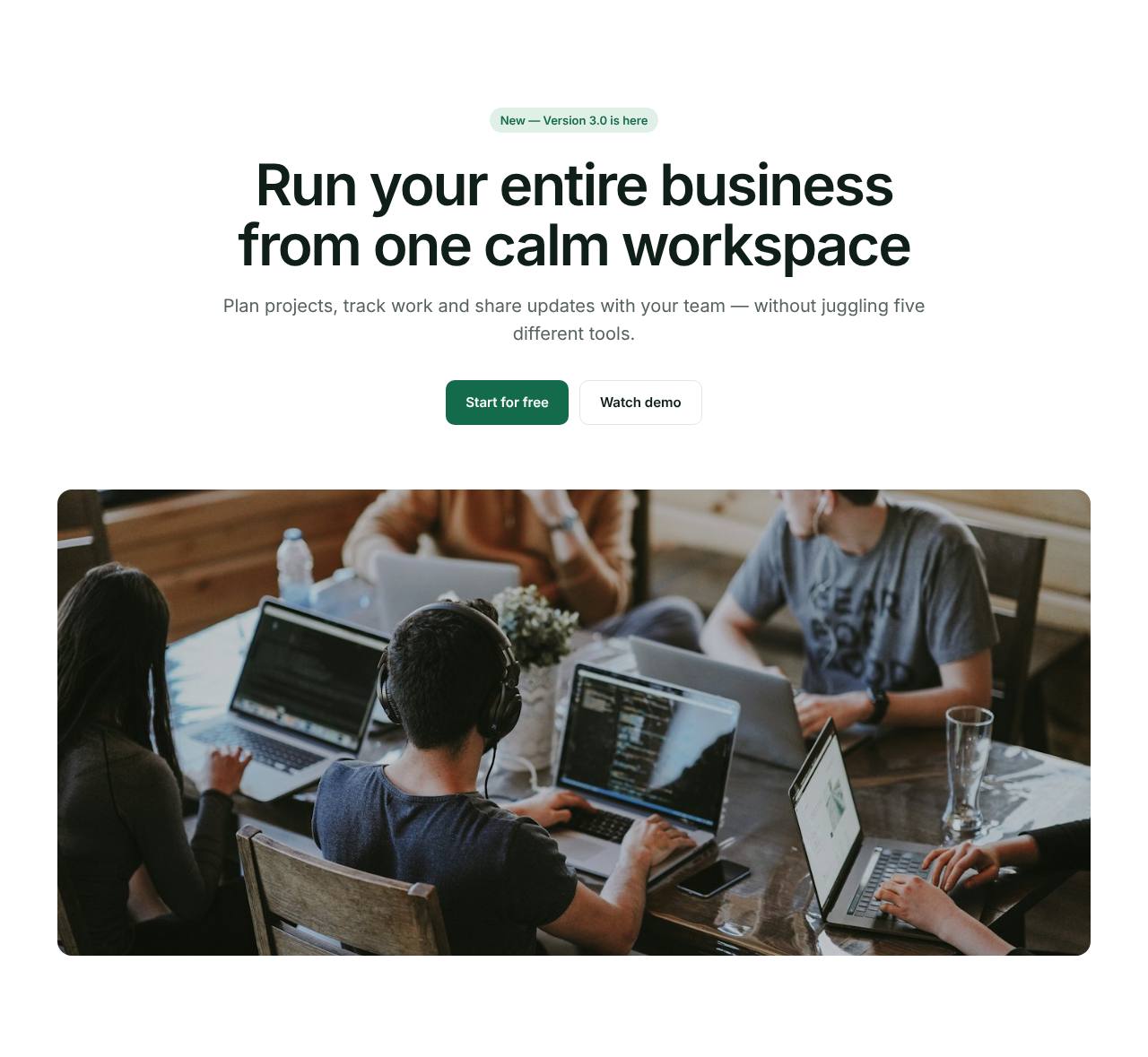
Centered with media
Hero · H1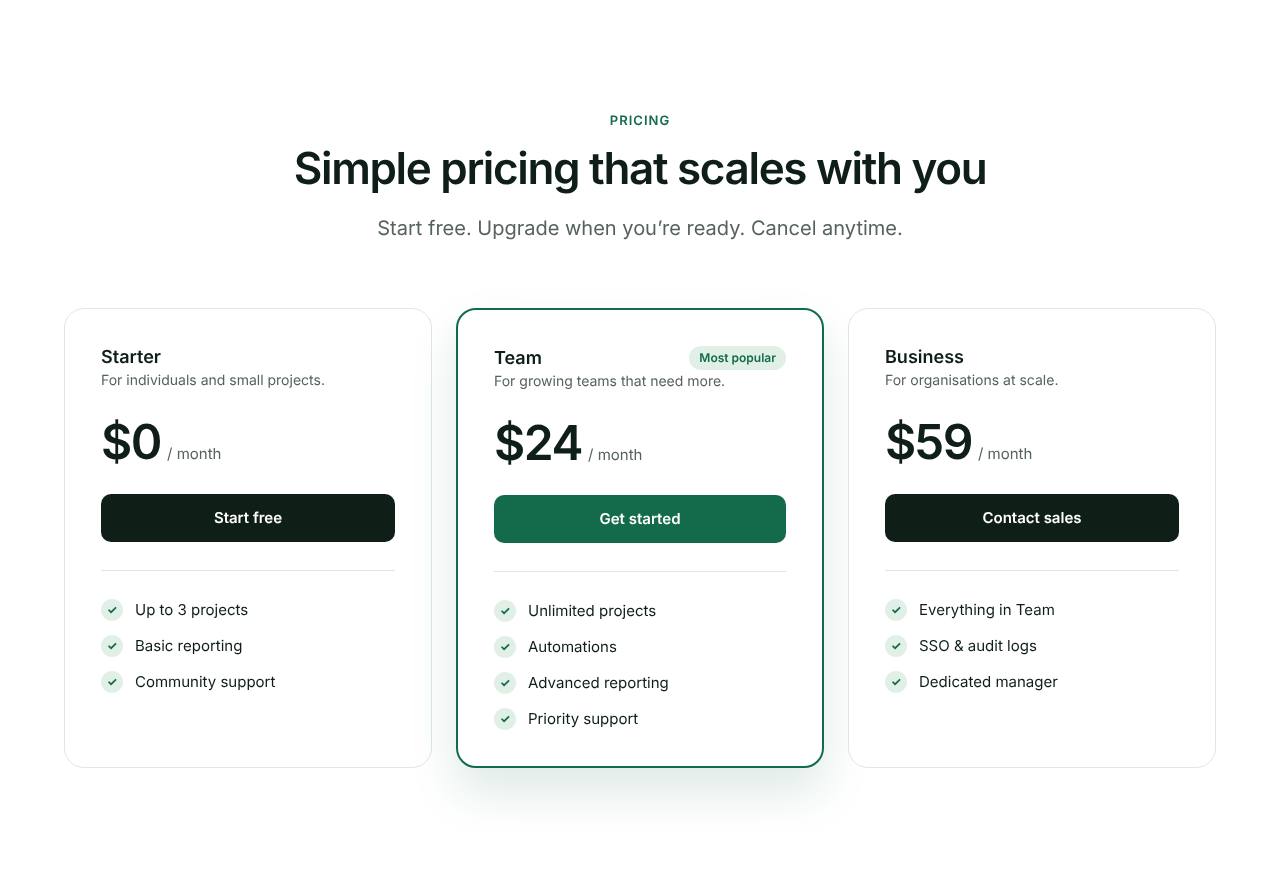
Three tiers
Pricing · H2, H3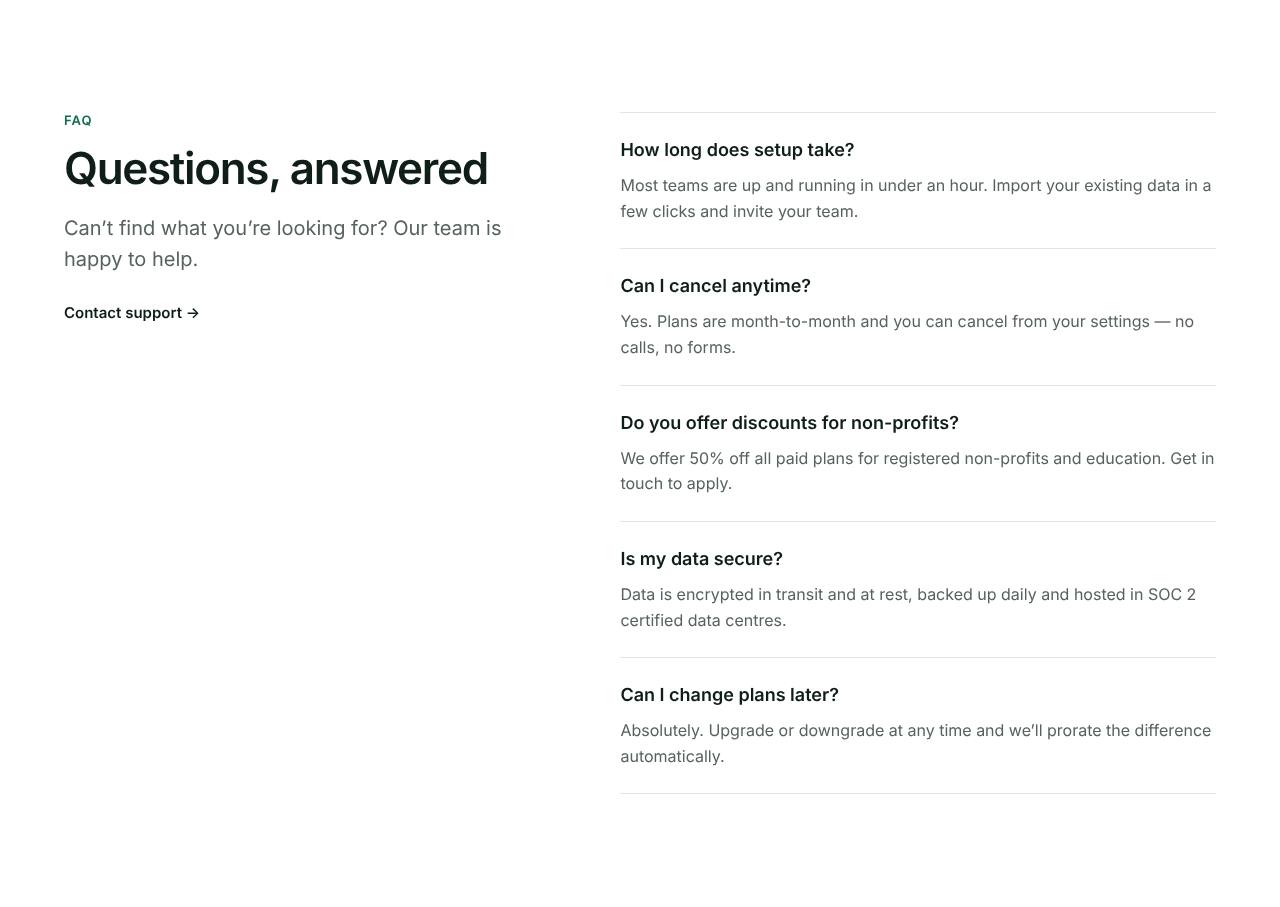
Side heading list
FAQ · H2, H3
Classic bar
NavigationMore guides
Start with the free sections
Make a free account and copy any free section into Webflow, Framer, Figma or code.