Home / Guides / Webflow vs Framer for client websites: how to choose
Webflow vs Framer for client websites: how to choose
Both Webflow and Framer can build a fast, good-looking marketing site. For client work the better question is which one the client can live with after you hand it over. Here is how the two compare on the things that matter in an agency project.
The short answer
Pick Framer for design-led sites with few pages and a small amount of content, where you want to design and build in one tool and move fast. Pick Webflow for content-heavy sites, larger CMS needs, clients with a developer or marketing team, or when the client may want the code later.
Client editing
Both tools let clients edit text and CMS content without touching the layout, and both sell cheaper editor seats for people who only update content. Framer’s editing experience feels closer to a design tool; Webflow’s class-based styling is more structured, which helps keep a site consistent when several people work on it. For a client who will only change a few words and add blog posts, either works.
CMS and content-heavy sites
This is the clearest difference. Webflow’s paid site plans with a CMS include far more items than Framer’s; as of November 2026, Webflow’s Premium site plan includes 20,000 CMS items, while Framer’s Pro plan includes 2,500, expandable with add-ons. Webflow also allows more fields and more complex collection set-ups. If the client runs a big blog, a resource library or a directory, Webflow is the safer choice.
Design, motion and speed of building
Framer works like a design tool: freeform layout, built-in effects and fast iteration, which suits portfolios, launches and landing pages. Webflow is closer to how CSS works (boxes, classes, flex and grid), which takes longer to learn but gives precise control and predictable results across breakpoints. Both support interactions and animation; Framer’s are quicker to set up, Webflow’s are more detailed.
Either way, starting from ready-made sections removes most of the build time. Ariva sections paste into Webflow as native elements and into Framer as code components.
Code export and developer handoff
Webflow can export a site’s HTML, CSS and JavaScript on paid plans, and has a broader developer platform. Framer does not export code; the site lives on Framer. If the client might move to their own stack later, or has developers who want the code, that points to Webflow.
Cost
Framer is cheaper at the entry level: as of November 2026, Framer’s Basic plan is $10 a month and Pro is $30 a month on annual billing. Webflow’s cheapest site plan does not include the CMS; the CMS starts on the Premium plan at $25 a month on annual billing. Both charge extra for editor seats and add-ons such as localization, so price the plan the client will actually need. Prices change often; check Webflow pricing and Framer pricing before you quote.
A quick decision checklist
- More than a few hundred pieces of content, or growing fast → Webflow.
- Client has developers, or may want the code later → Webflow.
- Small site, strong visual design, fast launch → Framer.
- You design and build alone and want one tool → Framer.
- Several people will edit and the site must stay consistent → Webflow.
- Budget is tight and the site has little content → Framer.
Sections to try this with
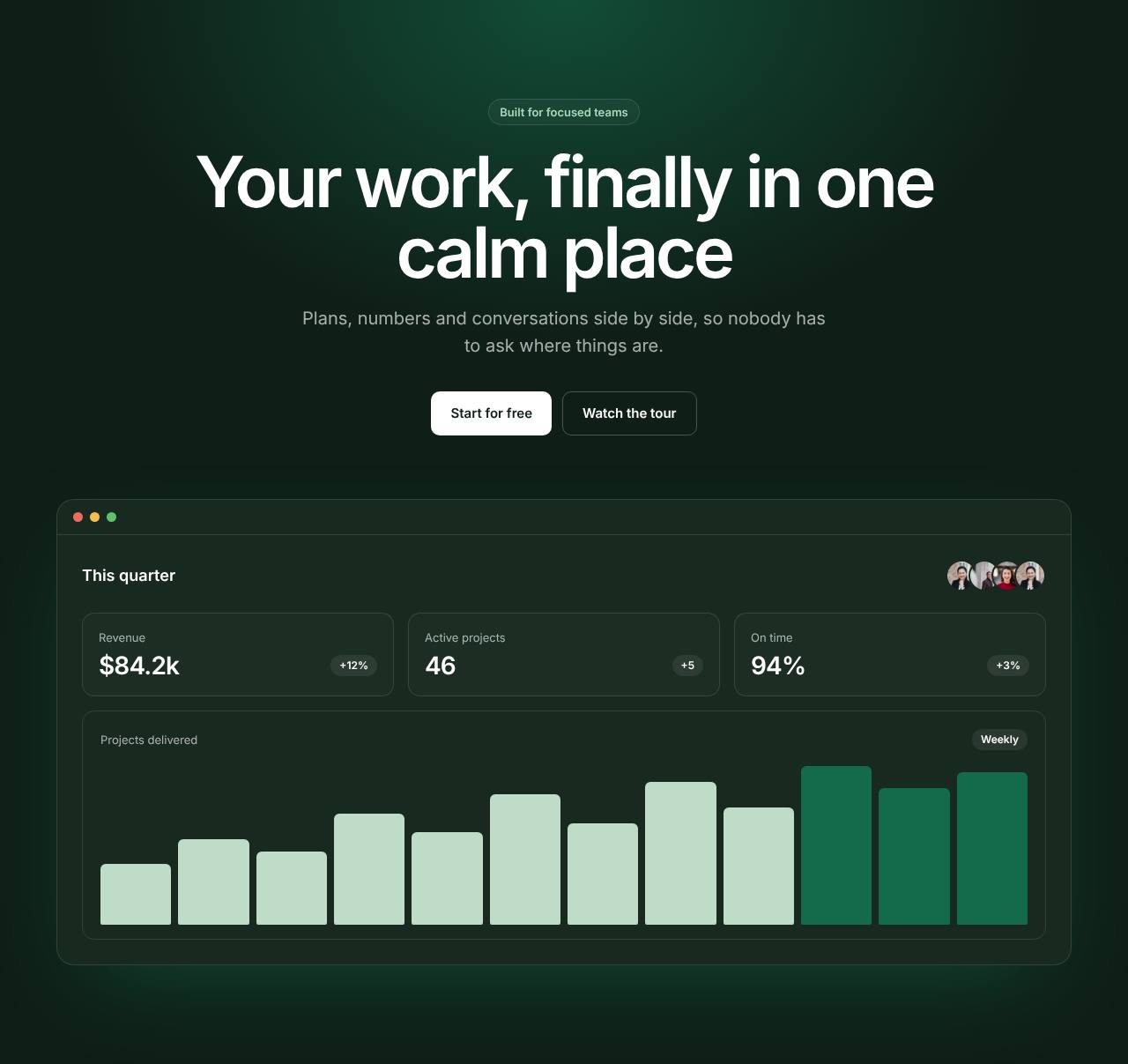
Dark glow with product
Hero · dark · H1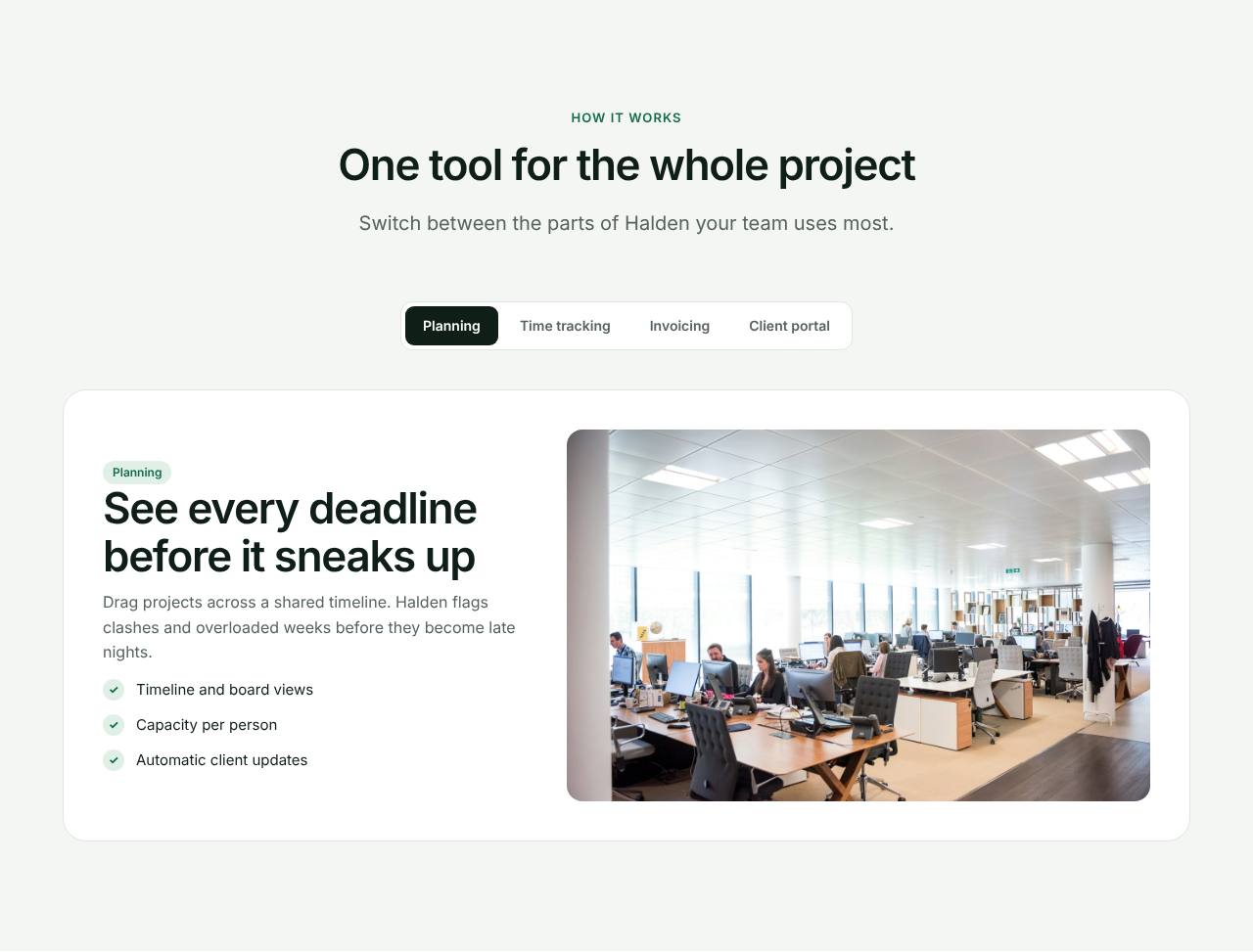
Tabbed showcase
Features · H2, H3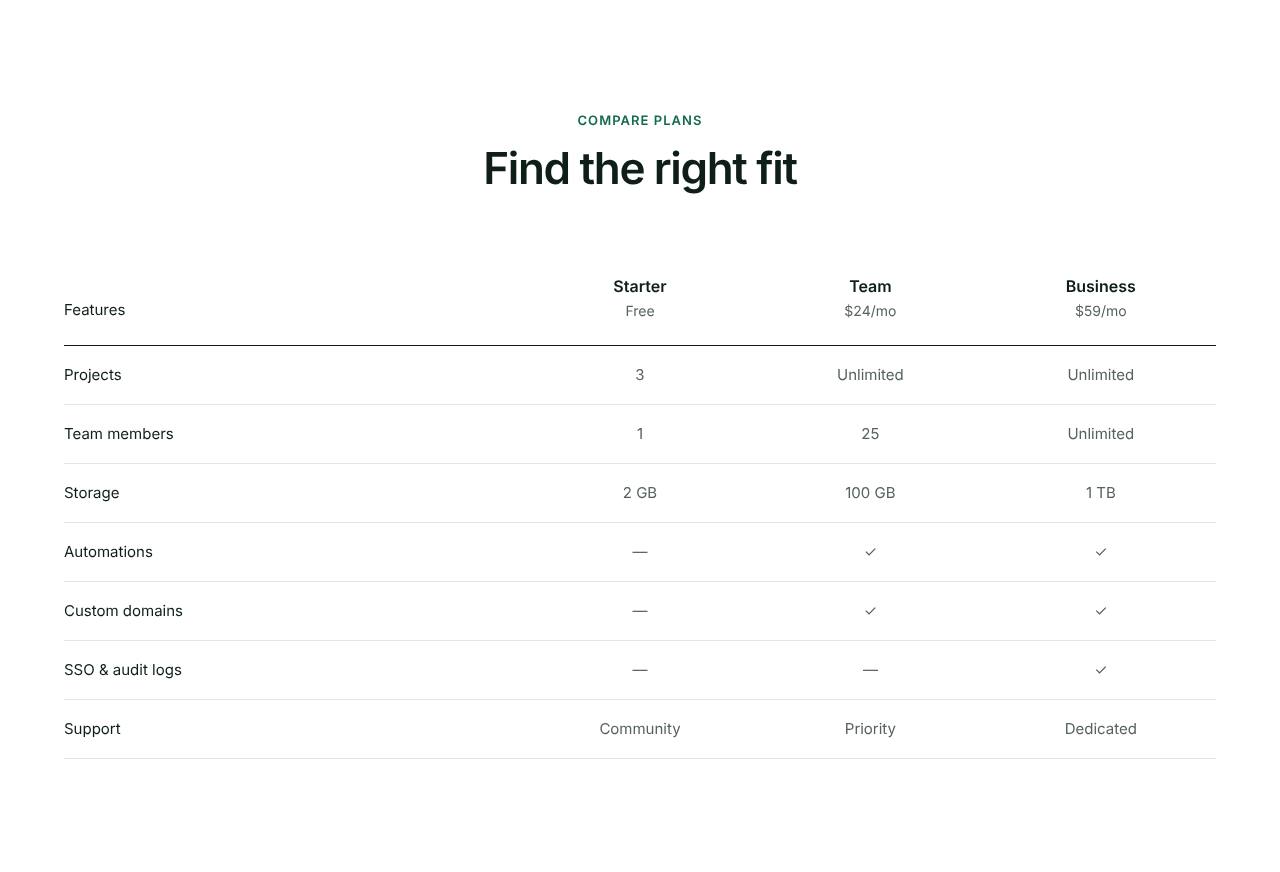
Comparison table
Pricing · H2
Featured and list
Blog · H2More guides
Start with the free sections
Make a free account and copy any free section into Webflow, Framer, Figma or code.