Home / Guides / How to build a hero section that explains your site in five seconds
How to build a hero section that explains your site in five seconds
The hero is the first thing every visitor sees. Its job is small and specific: say what this is, who it is for, and what to do next. Everything else in the section is there to support those three things.
The four parts
- Headline: what you offer or what the visitor gets.
- Supporting line: who it is for and how it works, in one or two sentences.
- One main button with an action in the label.
- Proof: a product image, logos or a real number.
Layout types
- Centered with media: text in the middle, an image or product shot below. Works for most products and is the easiest to get right.
- Split text and image: text on one side, a picture on the other. Good when the image carries meaning, such as a person or a place.
- Product window: a large screenshot or interface mock-up under the headline. Best for software where seeing the product is the pitch.
- Waitlist capture: a headline and an email field only. Use it before launch.
Writing the headline
Write what the visitor gets, in plain words. “Send invoices in one click” tells someone more than “The future of billing”. Read it out loud: if a stranger could not say what you sell after reading it, rewrite it. Keep clever wording for the supporting line, if you use it at all.
Showing proof
Use only what is true and checkable: a real screenshot, logos of customers who agreed to be shown, or a number you can source. If you have none of these yet, show the product itself. An honest, plain hero beats one with invented numbers.
Check it on mobile
- The headline should fit in three or four lines without a tiny font.
- The button should be visible without scrolling on a typical phone.
- Images should not push the text off the first screen.
- Tap targets should be large enough for a thumb.
Common questions
What should a website hero section include?
A headline that says what you offer, one supporting line for who it is for, one main button, and something that shows it is real: a product screenshot, a customer logo row or a number you can back up.
How long should a hero headline be?
Short enough to read at a glance, usually under ten words. If you need a second line to explain it, put that in the supporting text under the headline.
Should the hero have one button or two?
One main button. A second, quieter button is fine for a different audience (for example “See pricing”), but two equal buttons make people pause.
Sections to try this with
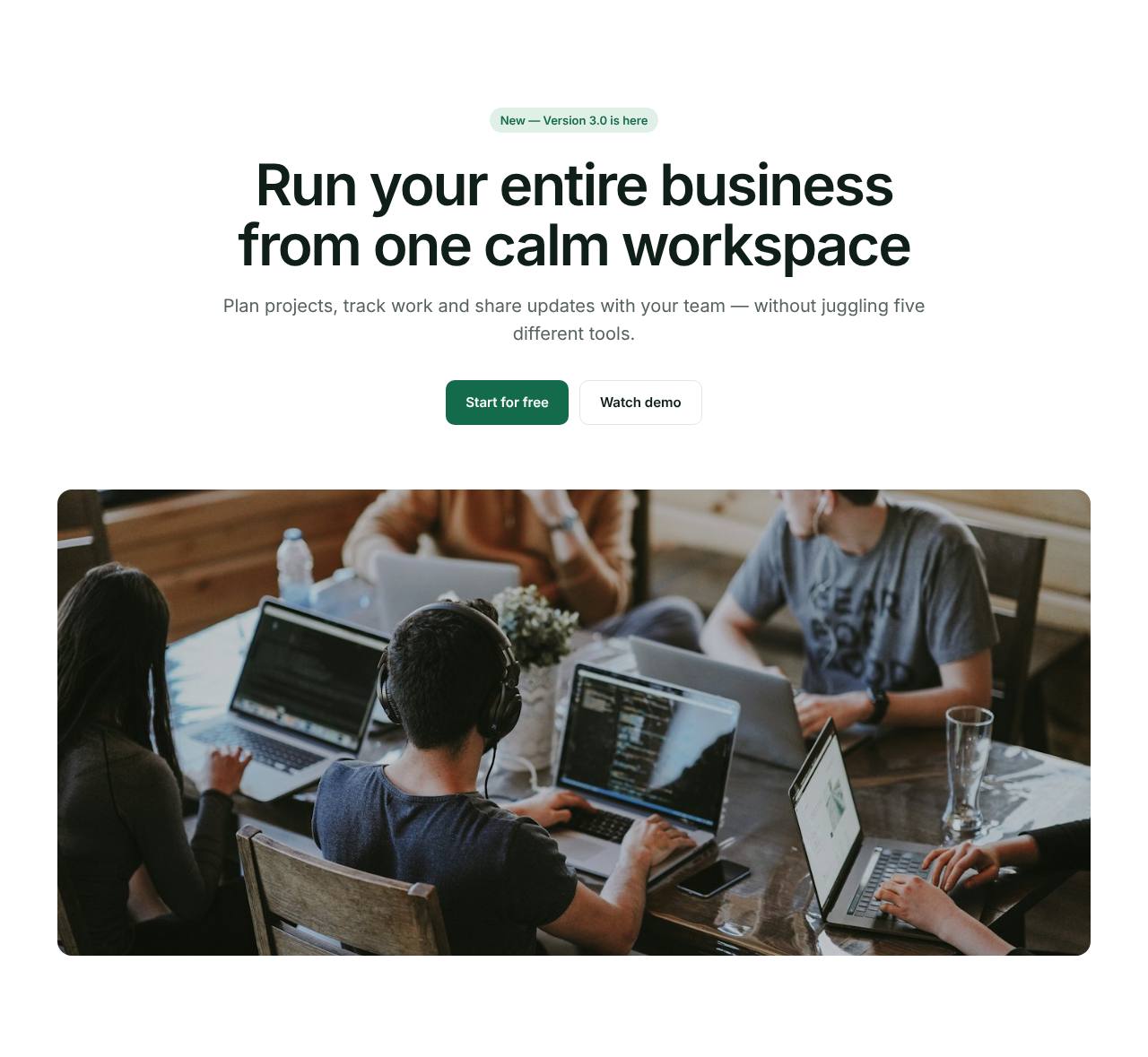
Centered with media
Hero · H1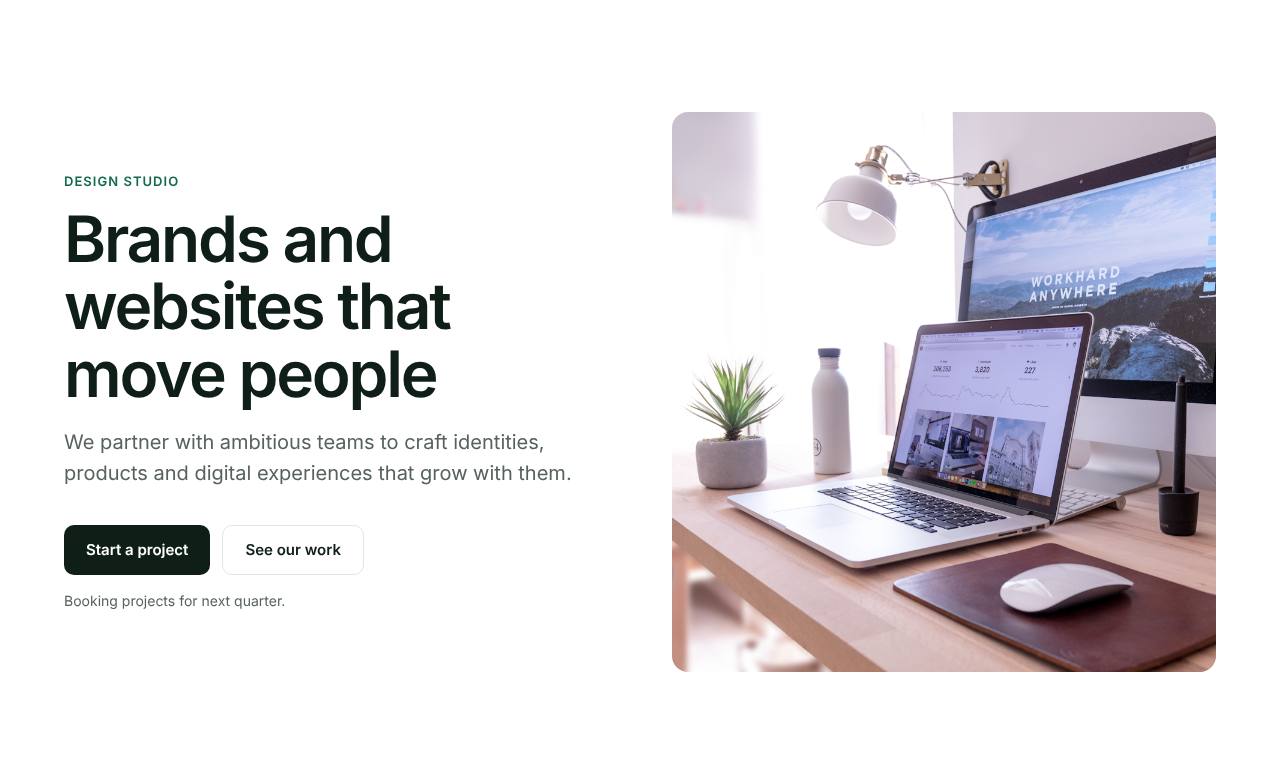
Split text and image
Hero · H1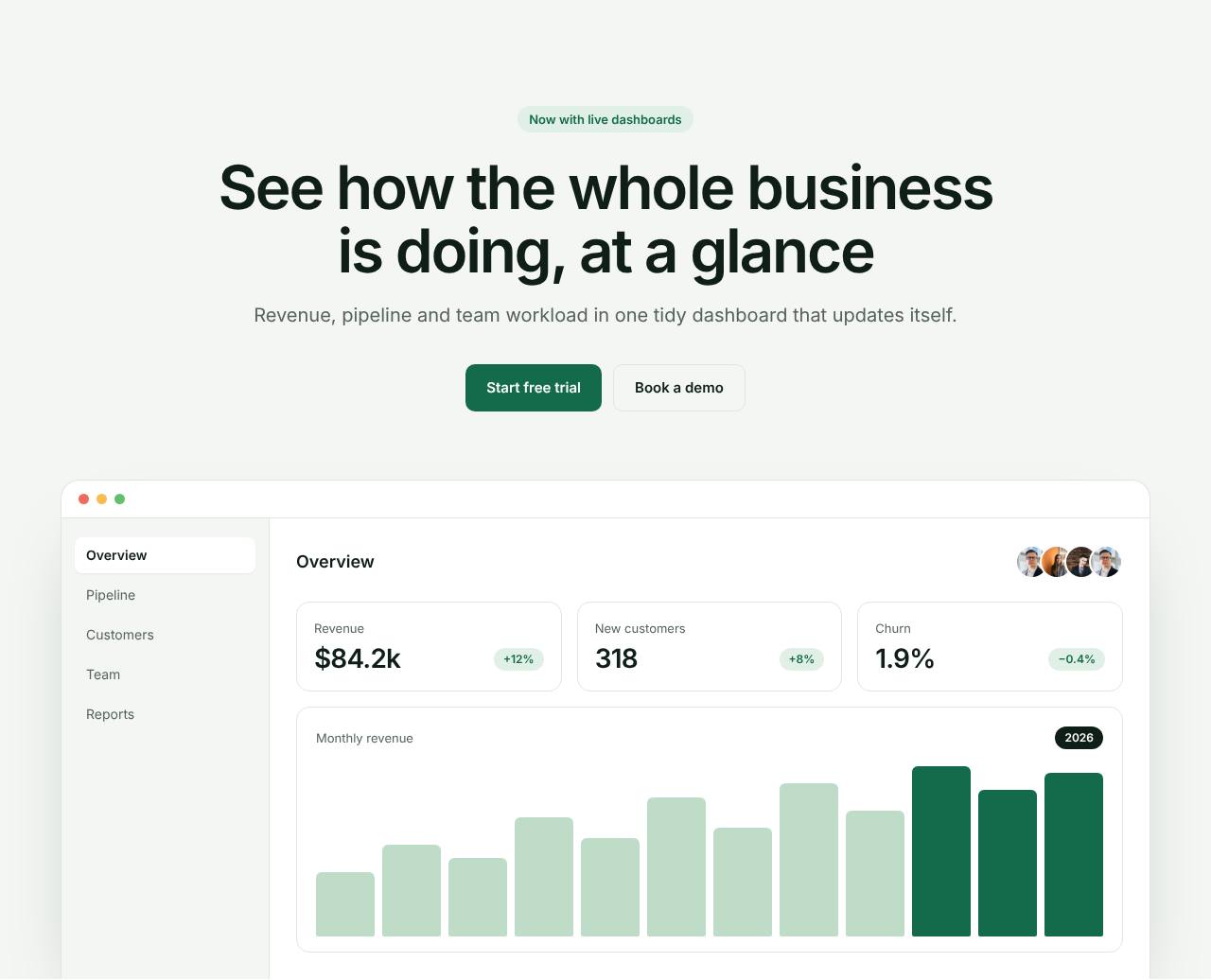
Product window
Hero · H1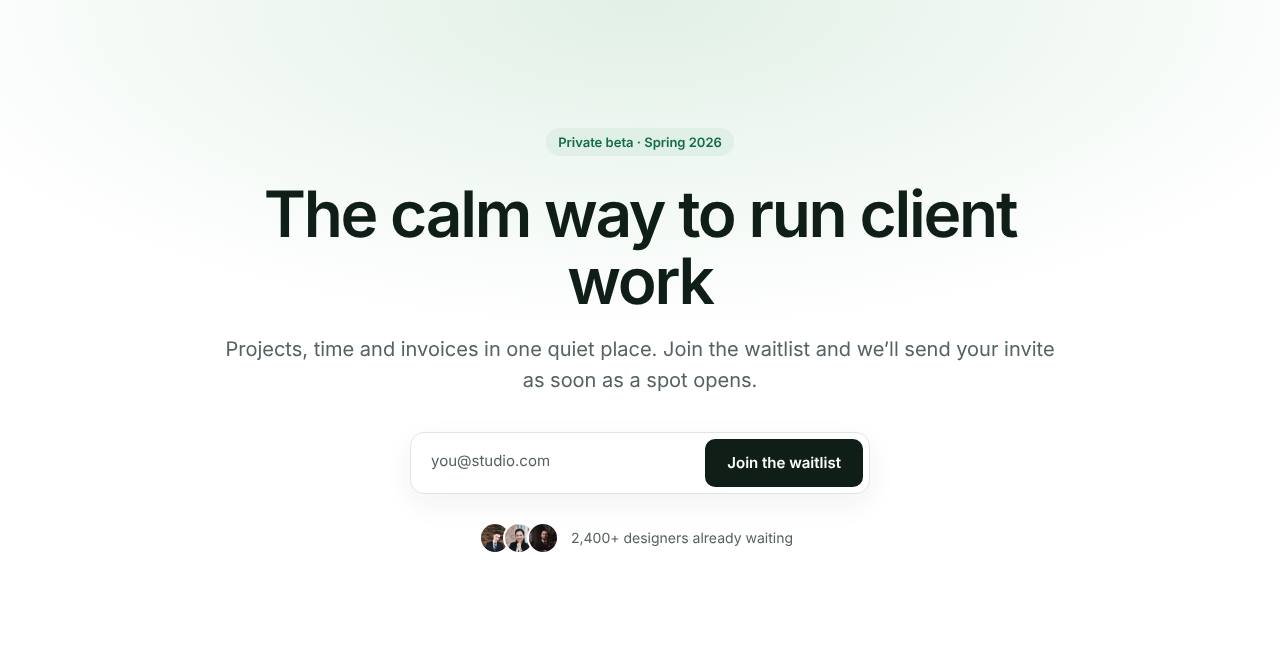
Waitlist capture
Hero · H1More guides
Start with the free sections
Make a free account and copy any free section into Webflow, Framer, Figma or code.